Guide to LearnNet
If you’re studying at Dumfries & Galloway College, you probably know about LearnNet already. It’s our Virtual Learning Environment, (VLE for short!).
For those that don’t know, LearnNet is where you’ll find all your course stuff online, like materials and quizzes uploaded by your lecturers. For some of you who are doing Open Learning, you might find your course materials somewhere else (don’t worry, your lecturer will let you know if that’s the case). To get logged in check out our guide below….
1. Logging in to LearnNet
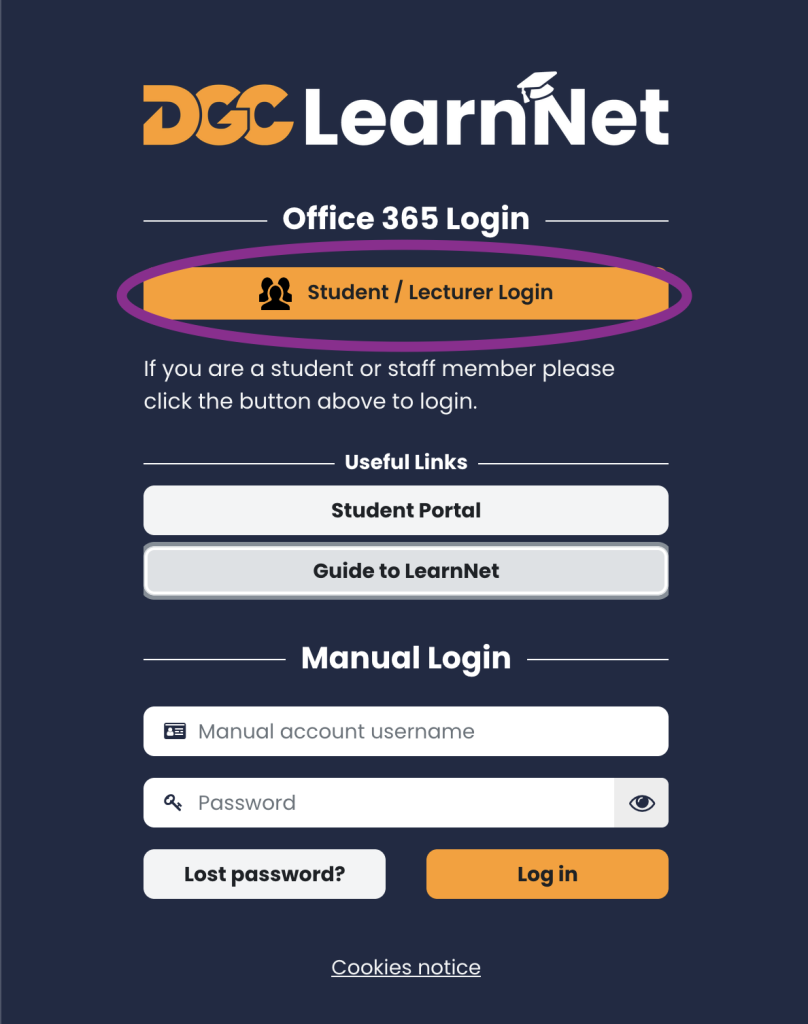
Load LearnNet www.dglearnnet.com in your web browser on your device. The website will work on desktop, tablet and mobile.
Click the button marked “Student / Lecturer Login“.
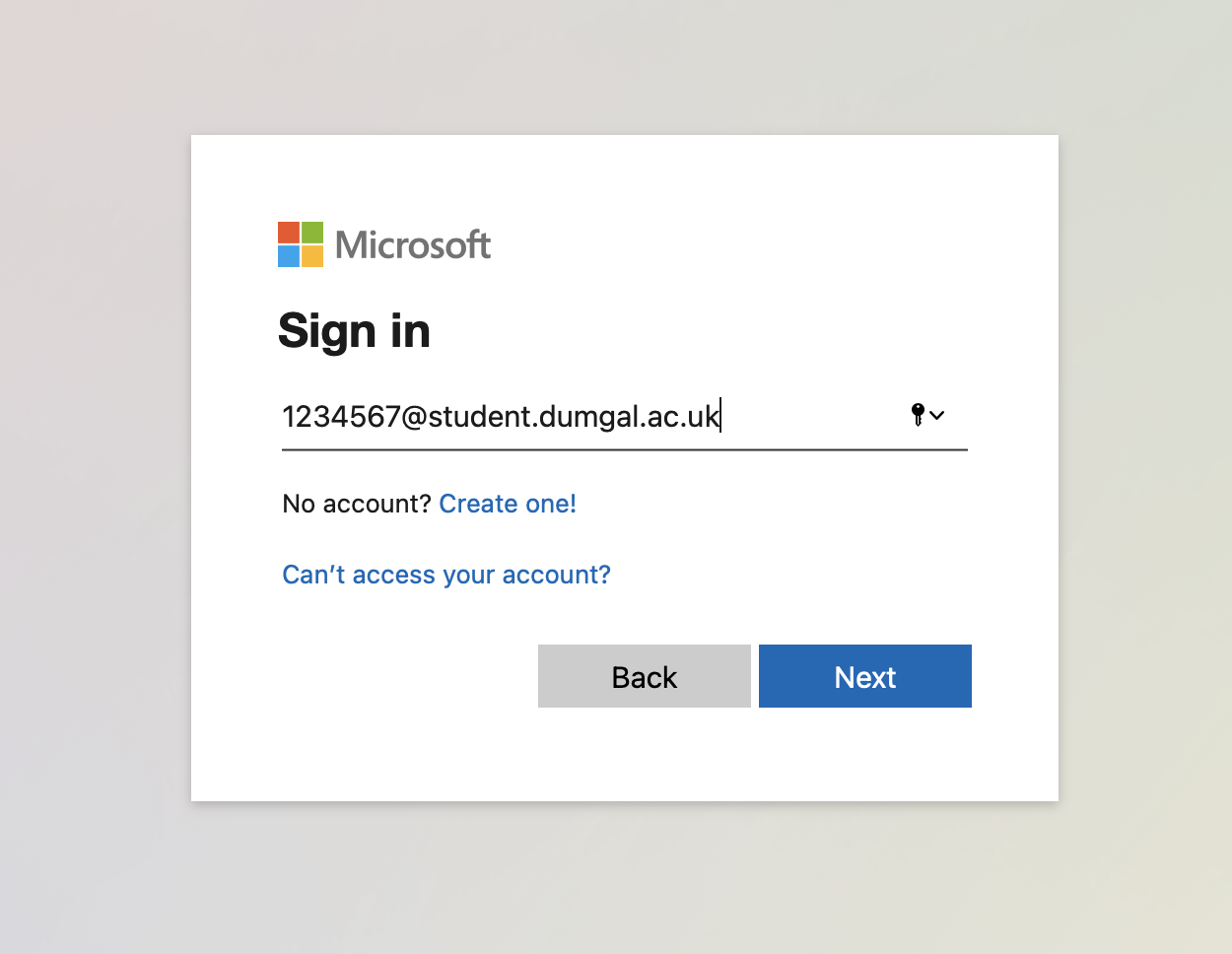
When Microsoft prompts you to log in, follow the on-screen instructions and use your college Office 365 email to sign in. Your email address will be your student ID followed by @student.dumgal.ac.uk. For example, 1234567@student.dumgal.ac.uk.
If you are already logged into your college Office 365 account this will automatically log you into LearnNet.
2. Tour of LearnNet
When you first login you will be automatically shown an online tour of LearnNet. This tour will show you where to find everything – there may be further guides for other sections of LearnNet like Books.
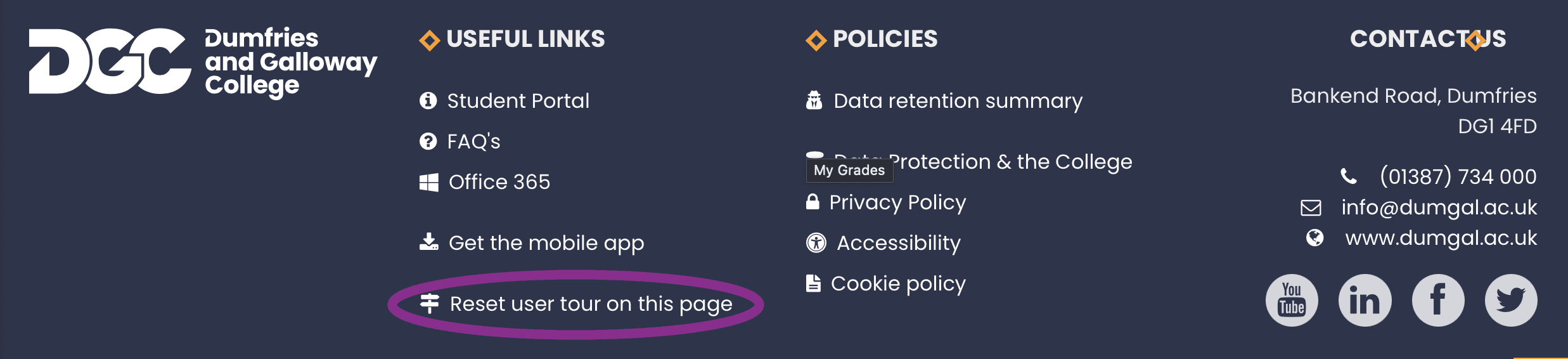
You can reset the tour on this page at any time by scrolling to the bottom of the page and clicking “Reset user tour on this page” under “Useful Links” in the footer.
3. Problems using LearnNet
If you experience any problems using your course materials on LearnNet you should contact your Course Tutor. Make sure to include as much information as you can along with what steps you took and any error messages you see.

Troubleshooting
Having trouble logging in?
Try the tips below. If you’re still stuck, email digitalservices@dumgal.ac.uk and we’ll help.
Don’t know your student ID or password?
You’ll receive your Student ID and password by email after you complete your enrolment.
- Not enrolled yet?
You won’t have an account yet.
Check the enrolment guide and look out for your enrolment link in your email after accepting your offer. - Have a conditional offer?
You’ll need to meet your conditions before enrolling.
If you think you should have had an enrolment link, contact Student Records at sturec@dumgal.ac.uk. - Already enrolled but no email?
Or lost your details? Email digitalservices@dumgal.ac.uk and we’ll resend them.
Forgotten your password?
If you have forgotten your password check our password reset guide
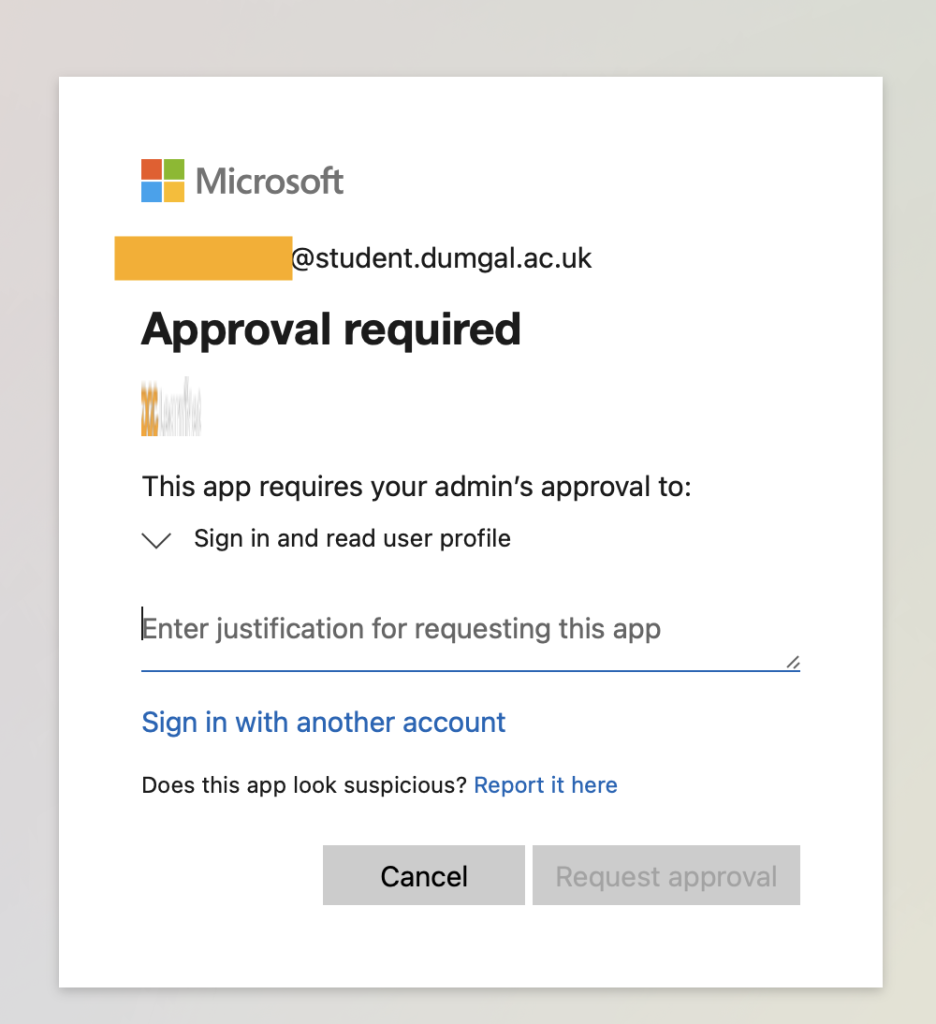
Microsoft is requesting Approval
- Check the email shown at the top—it should end in @student.dumgal.ac.uk
- If it doesn’t, you’re logged into the wrong account
- Go to portal.office.com, sign out, then log in with your student account
Still having issues? Get in touch with digitalservices@dumgal.ac.uk.